
A definition is a saved table (or “view”) that can represent how your organisation measures a particular metric, or wants to filter data.
You can think of a Definition a lot like a pivot table in Excel, or a reference sheet. In Filament, a definition takes the data from one or more apps, transforms it in the way you need, then returns it out as data that we can use later.
Just like you can build charts and dashboards on top of apps, you can build them on top of definitions too. This is powerful when multiple charts process data in the same way, because updating a definition will update it for all of them.
Use Definitions when your organisation has metrics or ways of calculating things that come up often. They’ll ensure everyone looking at the data is on the same page, and when you change your approach, update the definition once and all your dashboards change.
How Definitions Work
- They are saved queries. Definitions are like table charts, they save a query over your connected data that Filly can use when building dashboards or answering questions in Threads.
- Charts build on top of them. When you create a chart, it’ll use a definition wherever possible. This means updating the definition also updates all the charts that rely on it.
- You can understand them. The Definition tab turns the SQL that we write to create it into clear numbered steps you can follow without knowing database.
- They’re shared. Definitions are shared with your whole team, so they’re a powerful way to curate how Filament calculates or filters data.
- They can build on each other. Definitions can reference other definitions, so you can clean data in one definition and then pre-calculate it in another.
Charts built on a definition show a definition icon next to their app icons. You can click it to open the definition.
Create a Definition
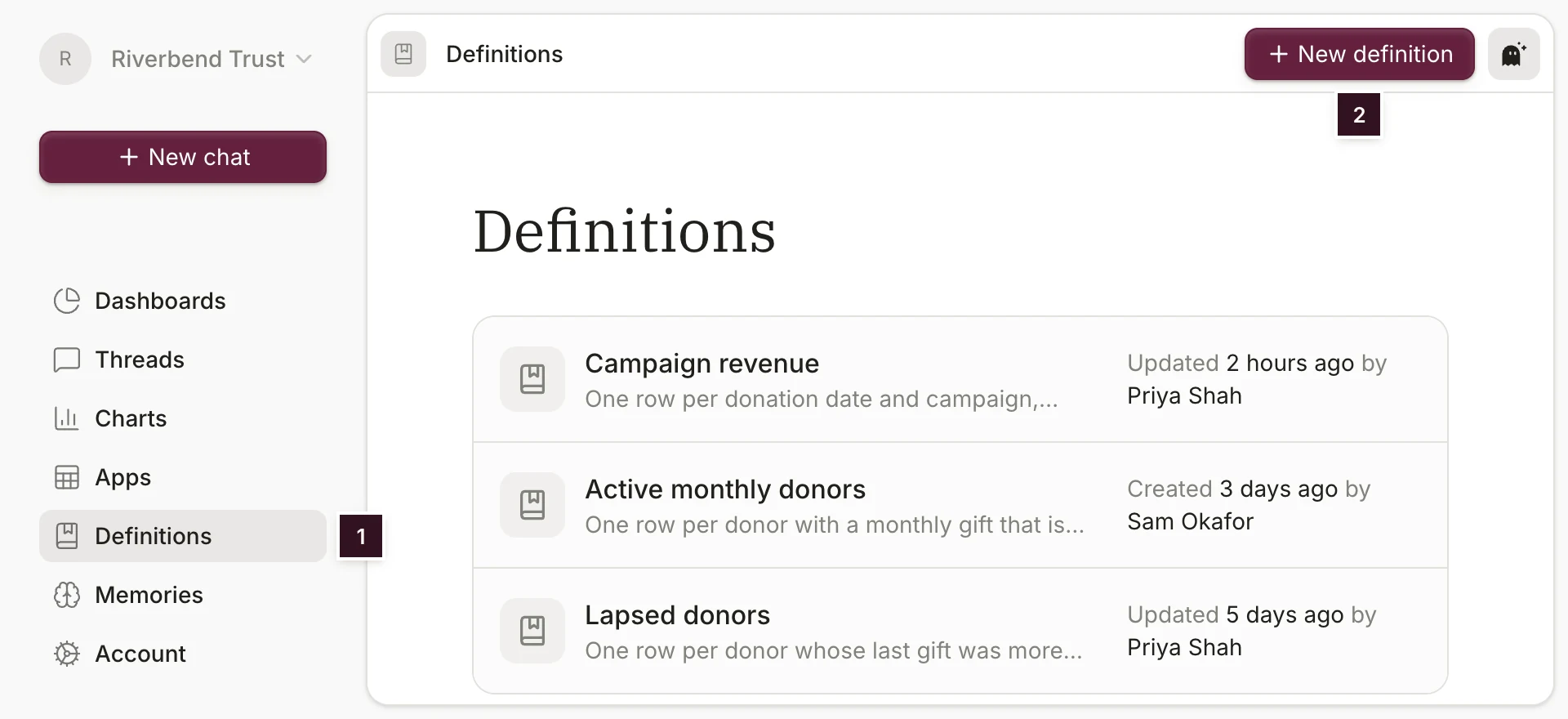
- Click Definitions in the sidebar.
- Click New definition. The editor opens with Filly beside it.
Then describe the rule to Filly (see below), or write the SQL yourself in the SQL tab.
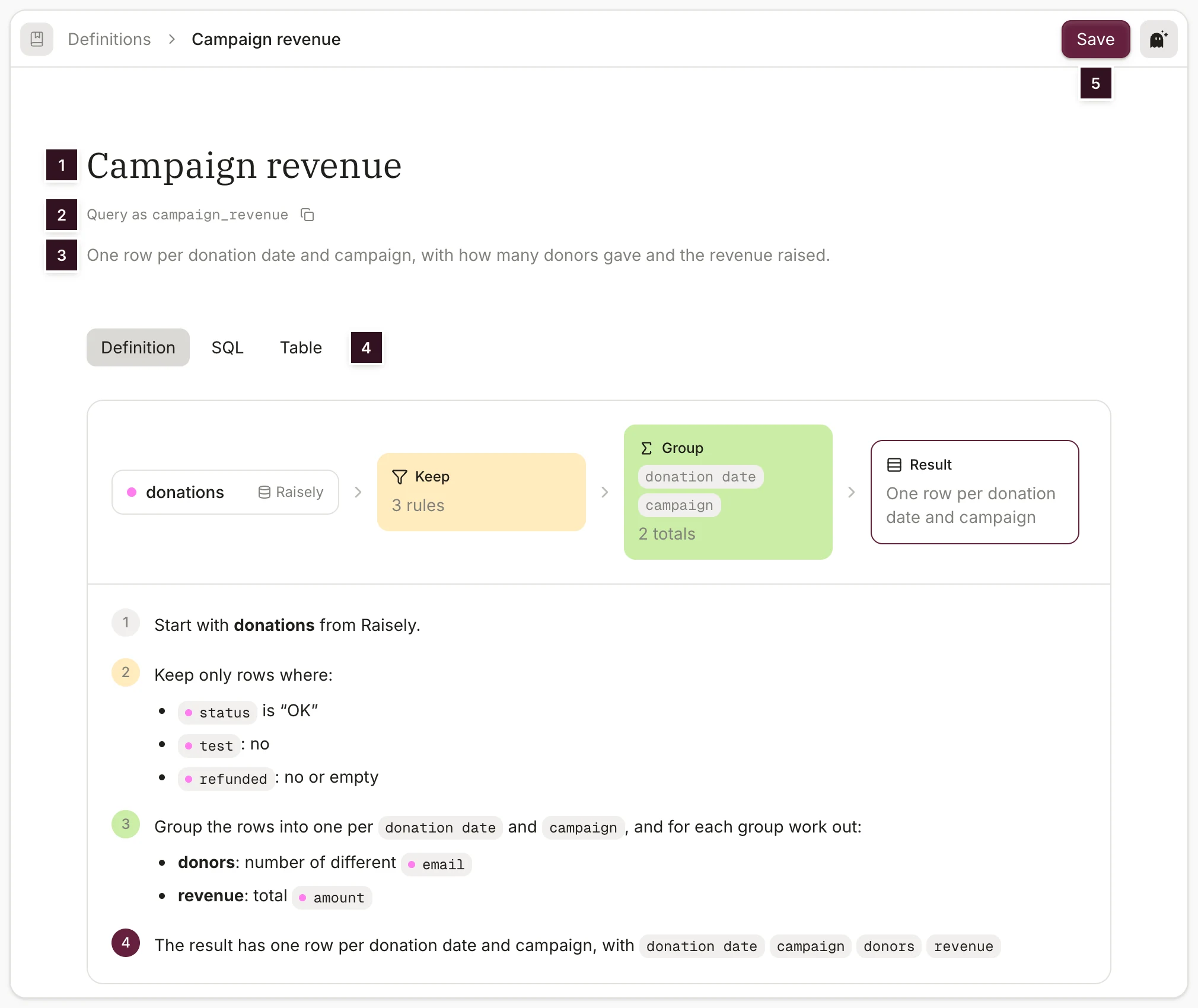
- Name: the name people see. Click it to rename.
- Query as: the table name charts and SQL use. It’s set when you first save and never changes.
- Description: one or two sentences on what one row is and what it counts. Click it to edit.
- Tabs: Definition shows the plain-language steps, SQL is the editor (with your tables alongside) and Table previews the first 100 rows.
- Save: checks that the query runs, then saves it.
Build One With Filly
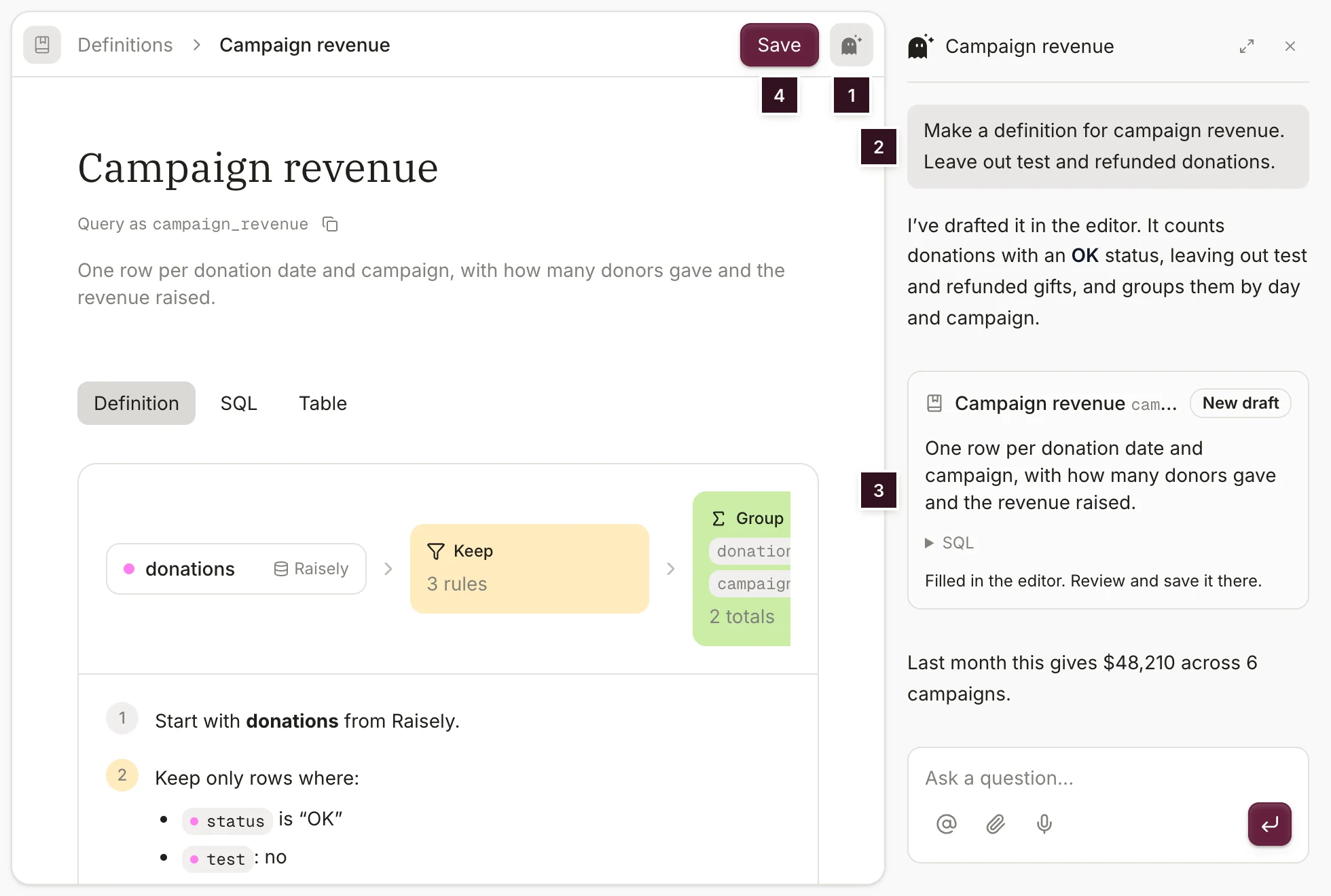
- Open Filly from the top right of the editor, if it isn’t already open.
- Describe the rule in plain English, including anything to leave out.
- Filly checks your data, asks about choices that change the number, and drafts the definition into the editor.
- Review the steps and the Table preview, then click Save. Filly drafts; only you save.
You can also ask for a definition from any dashboard, chart or chat. Filly shows a draft card with Save definition and Edit.
Once a definition exists, Filly uses it whenever it covers your question, and tells you when it has.
Update a Definition
- Rename or re-describe: click the name or description and type. It saves as soon as you click away.
- Change the rule: edit the SQL, or ask Filly in the editor to change it, then click Save. Every chart that uses the definition updates automatically.
- Restore an earlier version: every save is listed under History on the Definition tab.
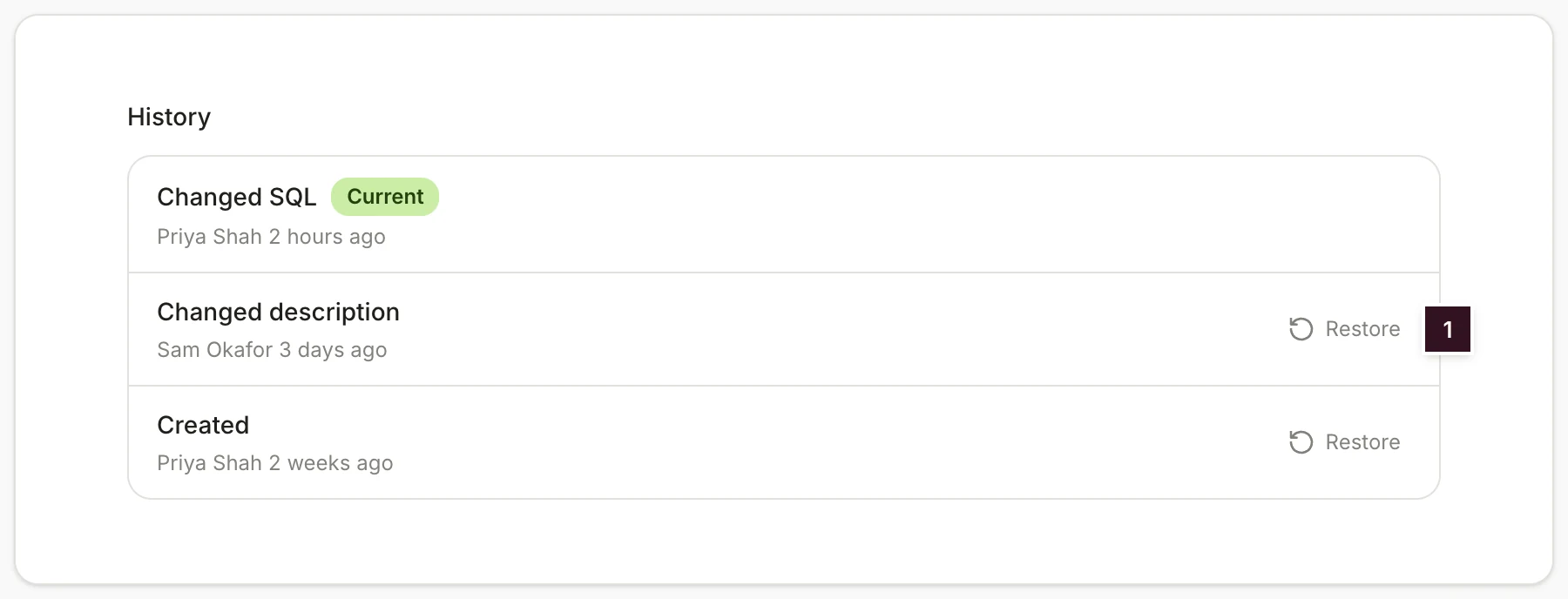
- Click Restore on the version you want. It loads into the editor, and clicking Save makes it current.
You can delete a definition at the bottom of the page. Charts that use the definition will stop working, and you can’t delete a definition while another definition is built on it.
Use Definitions with Claude or ChatGPT
If you’ve connected Claude, ChatGPT or another AI tool through the MCP server, it can manage your definitions too:
- When it looks at your data, it gets a list of your definitions and queries them by name instead of rebuilding the logic.
- It can create and update definitions. Ask it to “save this as a Filament definition”.
- All updates are stored as revisions, so you can revert anytime if you need to.
Tips
- One rule per definition. “Net revenue” and “Active donors” are easier to check and reuse than one definition that does both.
- Build on other definitions. A definition can select from another, so “Lapsed donors” can start from “Active donors”.
- Ask Filly for them. When building a dashboard, you can ask Filly to make you a definition when you know the data will be used in multiple places.